
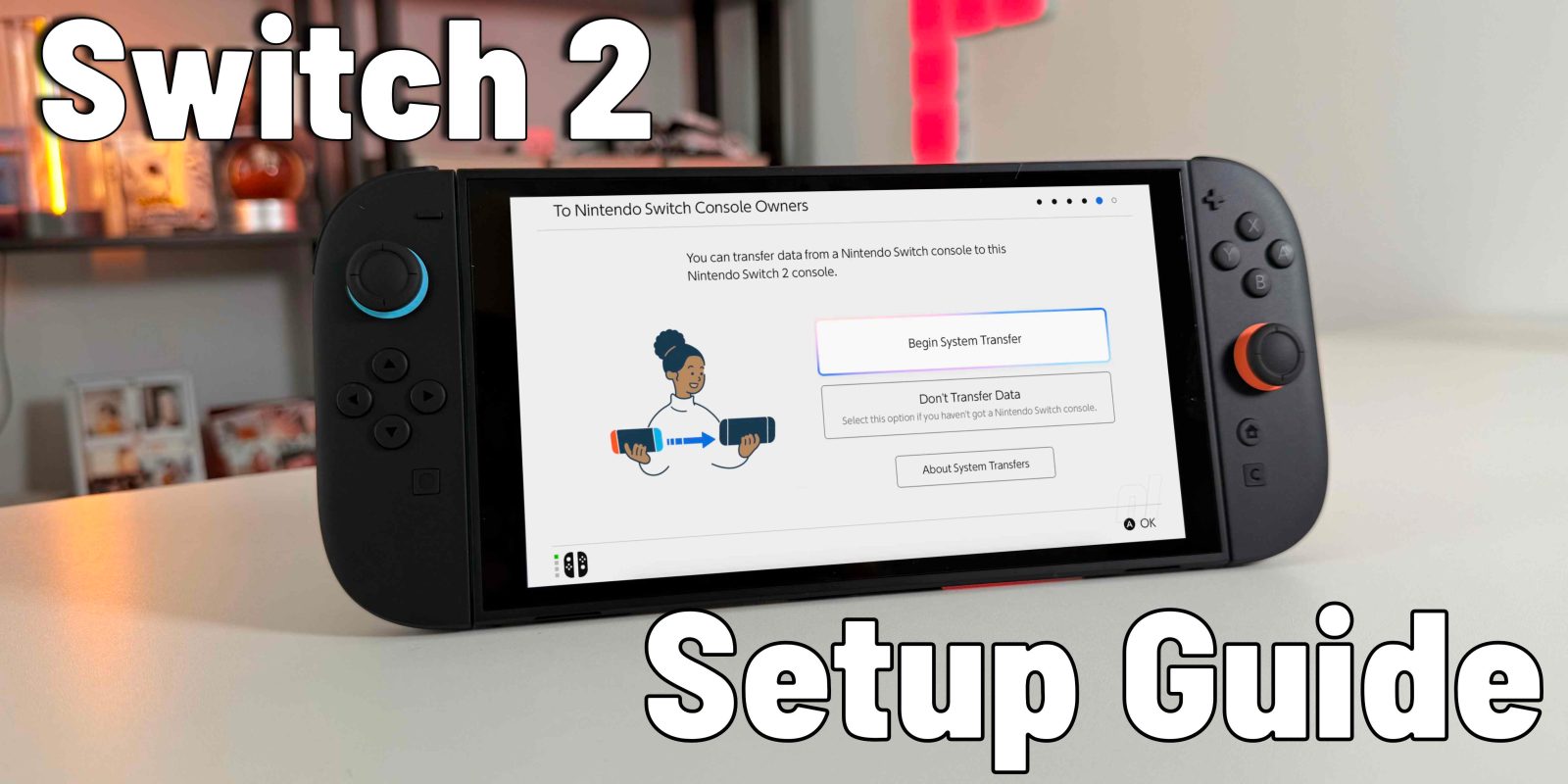
 Switch 2 Setup
I was lucky enough to get my hands on the new Switch 2 this week, and while the setup process was relatively easy, I had a bunch of unanswered questions. The questions centered mostly around game transfers, what Virtual games are, and what happens to my old Switch that I still want to keep and hand it down to a child. After doing some research, I got all my questions answered, and the solution is, well, not the best. Here is what you should know.

Setting up Switch 2 (from previous Switch)
I was coming from a Switch OLED that still works great and had all of my games and save data on it. The setup process is actually very easy to bring all of your data and games over to your new Switch 2. The set up is as follows:
- Connect to Wi-Fi
- Log in to your Nintendo account
- Follow the onscreen instructions until you get to the System Transfer screen
- Tap on Begin System Transfer
- Bring your old device next to your new Switch and let it work its magic
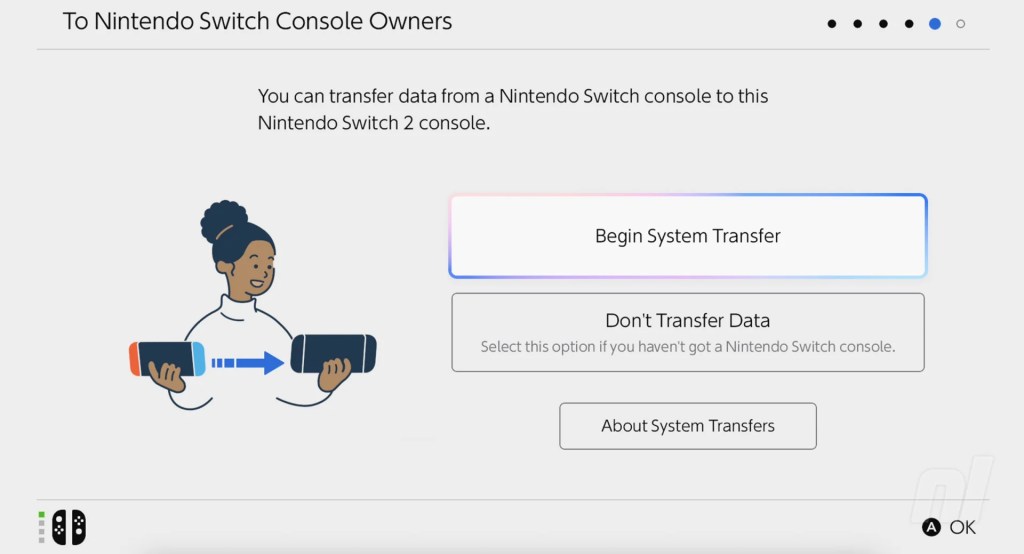
This entire process took less than 5 minutes; I even timed the process in our hands-on video here. Once it is completed, the new Switch 2 becomes your primary console, and your games will begin to download. All of my saved data went to the new Switch seamlessly. But after this moment, is where all my questions came.
What does Primary console actually mean?
This is where things get tricky if you’re dealing with digital games, which I mostly am.
- Your Switch 2 (the new primary) can play all your digital games anytime, even offline.
- Your old Switch can still access your digital games, but:
- It must be connected to Wi-Fi.
- It must be logged into your Nintendo account.
- Save data is gone unless backed up to the cloud.
If you want your kid to use your old Switch without Wi-Fi, that won’t work with digital games unless you choose one of the following options.
Option 1 – Make the old switch primary again
- Set the old switch as your primary switch again.
- This will allow the old switch to play your games offline but it means your new Switch 2 can only play those games via wifi and while logged into your account
This is something I did not want to do.
Option 2 – Virtual game lending
Nintendo lets you “lend” digital games, but there are caveats:
- The other user must have their own Nintendo account (which is something I do not want to create for my young child)
- You can lend a game for 14 days max.
- While on loan, you can’t play the game on your own device.
- You’ll need to recall it if you want it back sooner manually
This works for short-term sharing but it’s not ideal for everyday use or with young kids. I like the fact that they are treating the virtual copies as physical copies, but I want my child to be using the Switch OLED in guest mode and not have to create an account.
Option 3 – Physical games
This is your best long-term move:
- Physical cartridges work on any Switch model without Wi-Fi or needing to be logged into your account.
- Just pop the cartridge out of the Switch 2 and into the OLED—good to go.
- This only works with Switch 1-era games. Switch 2 games won’t work on older consoles.
Physical games are the way to go if you’re handing down an old Switch to a child or family member in your house.
GameShare vs Virtual game lending
I just wanted to clarify that GameShare and game lending are different. Gameshare is a new mode that lets one player who owns a particular game share that game with other consoles while playing a multiplayer mode. Again, this is a temporary share, and the consoles without the game can’t take it with them and play on their own. Lending is still temporary but acts as if you physically lent the game to someone, so they can play without the original owner of the game.
Final thoughts
Here’s what I learned:
- If you want flexibility, go with physical games moving forward.
- Digital games are fine for one user and one console, but sharing is limited and Wi-Fi dependent.
- If you’re handing down your old Switch, make sure your plan aligns with how you want to share games, especially for a kid without their own account.
What do you think? Did you upgrade from an existing Switch? What do you think of Nintendo’s new Virtual Game solution? Be sure to watch our latest video to get a hands-on look at everything we spoke about!
My favorite Switch 2 accessories
- MIXPOET Carrying Case for Switch 2
- Spigen Tempered Glass Screen Protector
- PowerA wireless controller
- Gigastone Express MicroSD card

FTC: We use income earning auto affiliate links. More.


Comments